Why Insomnia?
Recently I joined a new project and one of my first tasks was to test the OData end-point for a specific data entity. It was suggested that I do this using Postman. Over the last two years or so, I have been growing less fond of Postman and have been using Insomnia instead.
Insomnia provides all the same functionality to test REST APIs with some added tooling for specific API types likes GraphQL. It also offers a wide range of authentication methods. The one that I needed for the task at hand was OAuth2. And more specifically, the interactive flow.
As one does. I started my quest with a Google search. Which quickly lead to an article by Microsoft titled: "Use Insomnia with Dataverse Web API". Which was pretty close to what I needed, but was for CRM and not F&O. After a little bit of testing, I was so close I could taste it.
Using Insomnia
So I am going to assume you are already familiar with Insomnia, if not, there are plenty of resources out there to help you learn. The steps are the same as the Microsoft articlea mentioned above, but with some small configuration differences.
The first step is setup an environment with the following variables:
{
	"webapiurl": "{{ _.url }}/data",
	"redirecturl": "https://localhost",
	"authurl": "https://login.windows.net/{{ _.tenantId }}/oauth2/authorize?resource={{ _.url }}/",
	"clientid": "51f81489-12ee-4a9e-aaae-a2591f45987d"
}
So the variables above will always stay the same. Even when you switch environments. They use Insomnia's templating language. You will see that there are two variables that are interpolated: "url" and "tenantId".
Now go and create a sub-environment with these two variables. The values for these variables will be different for each environment. I have just put some sample values in for demonstration purposes.
{
	"url": "https://orgd0ecaa21.operations.eu.dynamics.com",
	"tenantId": "b0531d91-a43c-4b73-bee6-9443a2714e98"
}
The value for "url" is the URL for your F&O environment. Make sure not to include a trailing slash at the end. This is the same URL you use to access the front-end through the web. It is also shown in your environment header section in PPAC.
Before I forget. One disclaimer. I have only tested this on UDE's. So I am not sure if this works on USE's and UPE's or environments configured in LCS. But, I believe it should.
The value for "tenantId" is your Azure Tenant ID for the tenant that own the environment. This value can also be something like: "YourCompany.onmicrosoft.com"
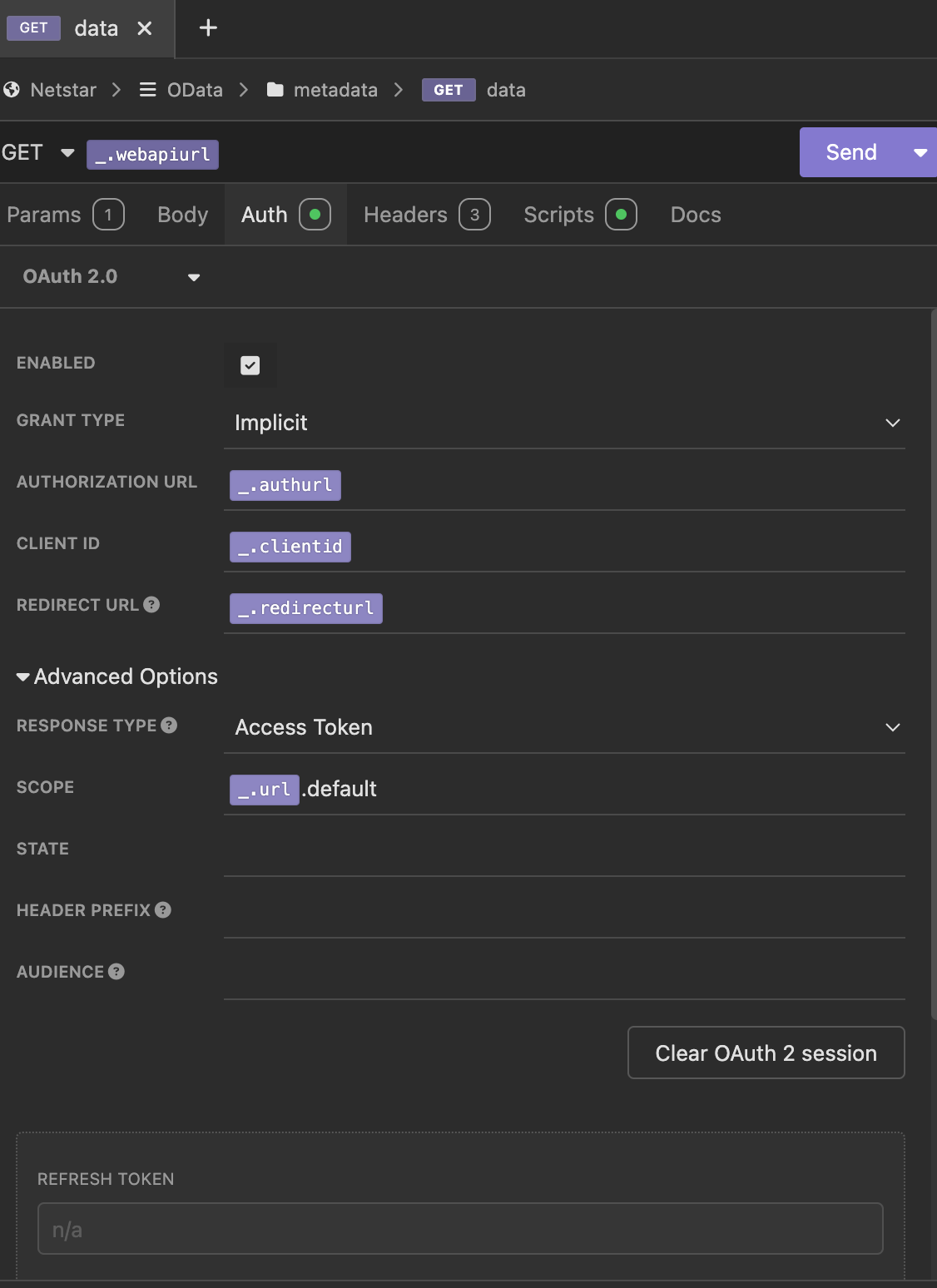
You should be all set for environment configuration now. Next create a GET request. (I am not covering updating and creating data in this posts, but it is possible.) The URL should be "{{_.webapiurl}}". On the Auth tab select "OAuth 2.0". Change the Grant Type to "Implicit". Set Aythorization URL to "{{_.authurl}}". Set Client ID to {{_.clientid}} (This is a universal Microsoft client id. So does not change between environments.). Set Redirect URL to "{{_.redirecturl}}". And finally, expand Advanced Options and set Scope to "{{_.url}}.default". See an image below of how your request should look.
You can now click Send. This should open a new browser window prompting you to log in with your credentials. Use the same credentials you would use when logging into the web. Use you are logged in Insomnia will then make the request with the access token it received. That is it. You don't need to create an application in Azure and add it in the backend. Your user just need the correct access.
As I mentioned earlier, you can also create and update data using Insomnia. You just need to change the http verb to Post and add the entity path to the end of your request's URL. Then set your body to JSON and create a valid payload. The easiest way to create new requests is to duplicate an existing one, because this copies the Auth settings. What is really great is that the OAuth session is shared between requests. So you only need to authenticate once. (Well, once every hour that is, because the token expires.)
I hope this post helped you. Happy testing.